
Packet Tracer VTP Configuration
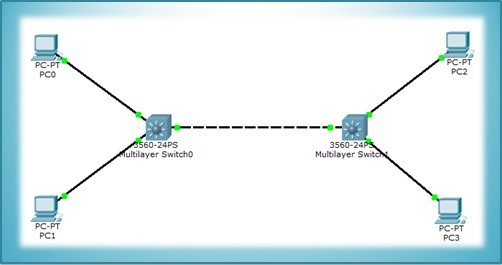
In this article, we will focus on how to configure VTP, with Packet Tracer. For VTP Configuration, we will use the topology below with two switches and two PCs.
You can DOWNLOAD the Packet Tracer example with .pkt format HERE.
For all Packet Tracer Examples and Files, you can check Packet Tracer Labs Page.
First of all we should configure the trunk between swithes. Because VTP information pass through only on trunk links on management VLAN (VLAN 1). To do this:
SwitchA> enableSwitchA# configure terminalSwitchA(config)# interface fa 0/24SwitchA(config-if)#switchport trunk encapsulation dot1qSwitchA(config-if)# switchport mode trunk%LINEPROTO-5-UPDOWN: Line protocol on Interface FastEthernet0/24, changed state to down%LINEPROTO-5-UPDOWN: Line protocol on Interface FastEthernet0/24, changed state to upSwitchA(config-if)# end
Now the trunk is activated. For switchport mode trunk command it is not necessary to use the same command at the other side of the link, without this job it is automatically activated.
VTP Client And VTP Server Configuration
In this steo, we will configure Switch A as a VTP Server and the Switch B as a VTP Client. The default switch VTP mode is VTP Server, so we will not change anything on SwitchA. But in SwitchB we will change vtp mode. Then in both switches we will configure VTP domain, VTP password, vtp version and vtp prunning.SwitchB> enable
SwitchB# configure terminalSwitchB(config)# vtp mode client
Then, let’s change the default domain name from NULL to cisco.
SwitchB(config)# vtp domain cisco
After that, we will set vtp password as abc123, vtp version 2. And we will enable vtp prunning.
SwitchB(config)# vtp password abc123SwitchB(config)# vtp version 2SwitchB(config)# vtp prunning enableSwitchB(config)# end
Now, it is time to configure switch A. We will configure the same parameters for the Switch A except VTP Mode. Switch A will be in VTP Server Mode by default. But to show you, we will use “vtp server mode” command..
SwitchA# enable
SwitchA(config)# vtp mode server
Device mode already VTP SERVER.
SwitchA(config)# vtp domain ciscooChanging VTP domain name from NULL to ciscoo04:50:49 %DTP-5-DOMAINMISMATCH: Unable to perform trunk negotiationon port Fa0/24 because of VTP domain mismatch.
SwitchA(config)# vtp domain cisco
Changing VTP domain name from ciscoo to cisco
SwitchA(config)# vtp password abc123SwitchA(config)# vtp version 2SwitchA(config)# vtp prunning enable
SwitchA(config)# end
VTP Configuration Verification
To verify Cisco VTP Configuration, we will use “show vtp status” command on both switches.SwithA# show vtp status VTP Version : 2 Configuration Revision : 0 Maximum VLANs supported locally : 255 Number of existing VLANs : 5 VTP Operating Mode : Server VTP Domain Name : cisco VTP Pruning Mode : Disabled VTP V2 Mode : Disabled VTP Traps Generation : Disabled MD5 digest : 0x12 0x34 0xBB 0x77 0x23 0xa4 0xA6 0x86 Configuration last modified by 0.0.0.0 at 4-6-23 07:15:24 Local updater ID is 0.0.0.0 (no valid interface found)
SwithB# show vtp status VTP Version : 2 Configuration Revision : 0 Maximum VLANs supported locally : 255 Number of existing VLANs : 5 VTP Operating Mode : Client VTP Domain Name : cisco VTP Pruning Mode : Disabled VTP V2 Mode : Disabled VTP Traps Generation : Disabled MD5 digest : 0x12 0x34 0xBB 0x77 0x23 0xa4 0xA6 0x86 Configuration last modified by 0.0.0.0 at 4-6-23 07:15:24 Local updater ID is 0.0.0.0 (no valid interface found)
SwitchA(config)# vlan 10
SwitchA(config)# vlan 20SwitchA(config)# vlan 30SwitchA(config)# end
When we use “show vlan brief” command on Switch A we will see the created VLANs like below:

Show vlan brief on SwitchA Again, when we check VLANs with the same command on Switch B, we will see the same VLANs on SwitchB:

Show vlan brief on SwitchB After this configuration, whenever we create, delete or modify a VLAN on Switch A, the same change will be done in Switch B too. Think about how a usefull function is it, especially during configuration of a large network with many switches!!!
Lastly, let ‘s use “show vtp status” command once more to check the status of vtp. Here, we will see that the total vlan number is 8 with additional 3 vlans.