
Huawei DHCP Configuration
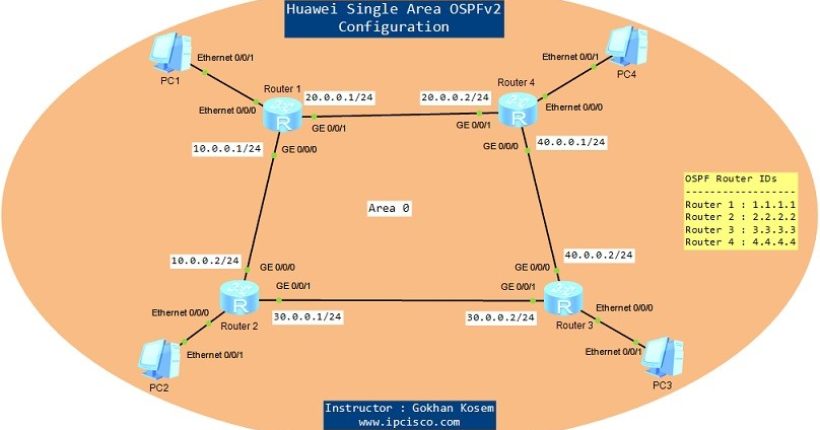
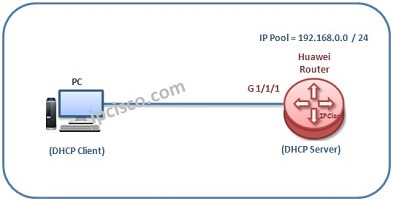
In this DHCP example we will configure, Huawei DHCP, a Huawei Router as a DHCP Server. After the configuration, a host device, here a PC, will receive its IP information from DHCP Server Huawei Router. For our DHCP configuration example, we will use the topology below: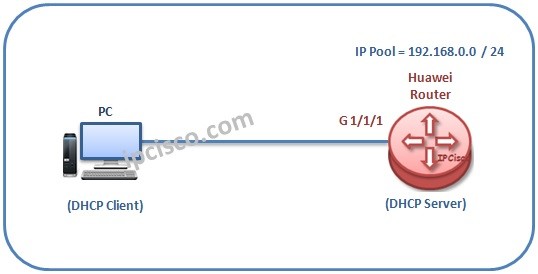 Let’s firstly talk about the DHCP Configuration steps on the Huawei Router. We will do the below steps one by one:
1.Enabling DHCP
2.DHCP IP Pool Configuration
3.DNS Configuration
4.Interface DHCP Configuration
5.DHCP Verification
6.DHCP Client Configuration
Let’s firstly talk about the DHCP Configuration steps on the Huawei Router. We will do the below steps one by one:
1.Enabling DHCP
2.DHCP IP Pool Configuration
3.DNS Configuration
4.Interface DHCP Configuration
5.DHCP Verification
6.DHCP Client Configuration
You can download this configuration on Huawei eNSP Labs Page.
Enabling DHCP
By default, DHCP is not enabled on Huawei Routers. So, the first step of configuring a Huawei Router as DHCP Server is enabling DHCP on the router. <Huawei-Router>system-view [Huawei-Router] dhcp enableDHCP IP Pool Configuration
Here, we will configure the IP Pool on Huawei Router. Our IP allocations will be done from this IP Pool. Two different IP Pool can be defined :- Interface Pool
- Global Pool
Other DHCP Articles:
DHCP Overview
DHCP IP Allocation Operation
Cisco DHCP Configuration With Packet Tracer
Huawei DHCP Configuration
DHCP DNS Configuration
DNS information is also provided from the DHCP Server. To get this information from DHCP Server, we will configure Huawei Router, with DNS commands. Here, firstly, we will configure the DNS IP address and then we will exclude this address from the IP Pool. [sc name=”ContentRMessage”]