Packet Tracer EIGRP Configuration
EIGRP (Enhanced Interior Gateway Routing Protocol), is a Cisco Proprietary
Hybrid Routing Protocol. The
configuration of
EIGRP is similar to other
Routing Protocols. In this example, we will configure
EIGRP on Packet Tracer with Cisco Routers..
With this
EIGRP Config, we will learn important Cisco
EIGRP Commands on Cisco Packet Tracer. For our
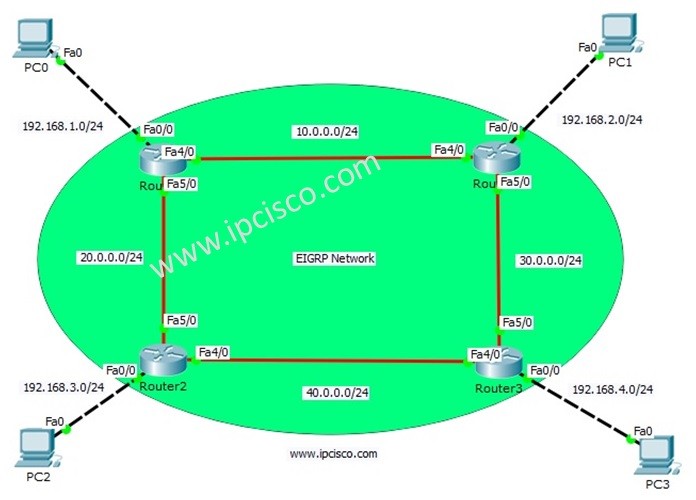
EIGRP Config Example, we will use the below topology consist of four routers and four PCs on Packet Tracer.
 EIGRP Configuration Topology
You can DOWNLOAD the Cisco Packet Tracer example with .pkt format at the End of This Lesson.
You can also DOWNLOAD all the Packet Tracer examples with .pkt format in Packet Tracer Labs section.
IP Configurations For EIGRP Configuration
For any Packet Tracer Configuration Exmaple, firstly we should configure IP addresses. So, in this
EIGRP Configuration, let’s firtly configure IP addresses of the routers and PCs. You can find these ip addresses below:
PC0: 192.168.1.1 255.255.255.0 GW:192.168.1.2
PC1: 192.168.2.1 255.255.255.0 GW:192.168.2.2
PC2: 192.168.3.1 255.255.255.0 GW:192.168.3.2
PC3: 192.168.4.1 255.255.255.0 GW:192.168.4.2
We will start our
EIGRP Packet Tracer Configuration with Router 0 and we will continue with Router1, Router2 and Router3 orderly. Let’s start!
Router0(config)# interface FastEthernet0/0
Router0(config-if)# ip address 192.168.1.2 255.255.255.0
Router0(config-if)# no shutdown
Router0(config-if)# exit
Router0(config)# interface FastEthernet4/0
Router0(config-if)# ip address 10.0.0.1 255.255.255.0
Router0(config-if)# no shutdown
Router0(config-if)# exit
Router0(config)# interface FastEthernet5/0
Router0(config-if)# ip address 20.0.0.1 255.255.255.0
Router0(config-if)# no shutdown
Router0(config-if)# end
Router0# copy running-config startup-config
Router1(config)# interface FastEthernet0/0
Router1(config-if)# ip address 192.168.2.2 255.255.255.0
Router1(config-if)# no shutdown
Router1(config-if)# exit
Router1(config)# interface FastEthernet4/0
Router1(config-if)# ip address 10.0.0.2 255.255.255.0
Router1(config-if)# no shutdown
Router1(config-if)# exit
Router1(config)# interface FastEthernet5/0
Router1(config-if)# ip address 30.0.0.1 255.255.255.0
Router1(config-if)# no shutdown
Router1(config-if)# end
Router1# copy running-config startup-config
Router2(config)# interface FastEthernet0/0
Router2(config-if)# ip address 192.168.3.2 255.255.255.0
Router2(config-if)# no shutdown
Router2(config-if)# exit
Router2(config)# interface FastEthernet4/0
Router2(config-if)# ip address 40.0.0.1 255.255.255.0
Router2(config-if)# no shutdown
Router2(config-if)# exit
Router2(config)# interface FastEthernet5/0
Router2(config-if)# ip address 20.0.0.2 255.255.255.0
Router2(config-if)# no shutdown
Router2(config-if)# end
Router2# copy running-config startup-config
Router3(config)# interface FastEthernet0/0
Router3(config-if)# ip address 192.168.4.2 255.255.255.0
Router3(config-if)# no shutdown
Router3(config-if)# exit
Router3(config)# interface FastEthernet4/0
Router3(config-if)# ip address 40.0.0.2 255.255.255.0
Router3(config-if)# no shutdown
Router3(config-if)# exit
Router3(config)# interface FastEthernet5/0
Router3(config-if)# ip address 30.0.0.2 255.255.255.0
Router3(config-if)# no shutdown
Router3(config-if)# end
Router3# copy running-config startup-config
EIGRP Configuration on Routers
For
EIGRP Configuration, we will use
Autonomous System Number. We will use this number with “
router eigrp” command. After this
command, we will be under router configuration mode. We will add
networks that run EIGRP one by one. Lastly we will add “
no auto-summary” command to avoid
automatic summarization on routing table.
Firstly, let’s start our
EIGRP Config with Router0 and then
configure EIGRP on the other Routers.
Here, our EIGRP Autonomous number will be
100. And for Router0,
192.168.1.0, 10.0.0.0, 20.0.0.0 network will be added under this EIGRP process. These are the directly connected networks to Router0.
Router0(config)# router eigrp 100
Router0(config-router)# network 192.168.1.0
Router0(config-router)# network 10.0.0.0
Router0(config-router)# network 20.0.0.0
Router0(config-router)# no auto-summary
Router0(config-router)# end
Router0# copy running-config startup-config
The similar configuration will be done on Router1 also. Here, only the networks will be changed. The direclty connected networks to Router1 will be added.
Router1(config)# router eigrp 100
Router1(config-router)# network 192.168.2.0
Router1(config-router)# network 10.0.0.0
Router1(config-router)# network 30.0.0.0
Router1(config-router)# no auto-summary
Router1(config-router)# end
Router1# copy running-config startup-config
For Router2 and Router3 the similar
Cisco EIGRP Configuration will be done. Only ne added networks will be changed. Because each router has different directly connected networks.
Router2(config)# router eigrp 100
Router2(config-router)# network 192.168.3.0
Router2(config-router)# network 20.0.0.0
Router2(config-router)# network 40.0.0.0
Router2(config-router)# no auto-summary
Router2(config-router)# end
Router2# copy running-config startup-config
Router3(config)# router eigrp 100
Router3(config-router)# network 192.168.4.0
Router3(config-router)# network 30.0.0.0
Router3(config-router)# network 40.0.0.0
Router3(config-router)# no auto-summary
Router3(config-router)# end
Router3# copy running-config startup-config
Configuration Verification
After our Packet Tracer Configuartion, now let’s
verify our
EIGRP Configuration with
EIGRP Show Commands. Here, we will check this only on some routers, not on all of them. So what are these verification commands? Some of thes eEIGRP verification commands are given below:
- show ip eigrp
- show ip eigrp neighbors
- show ip eigrp interfaces
- show ip eigrp topology
- show ip route eigrp
- show ip protocols
Now, let’s chekc each of these commands on Cisco routers.
When we use “
show ip eigrp ?” command, we can see our eigrp options that we can use on Packet Tracer.
Router#
show ip eigrp ? interfaces IP-EIGRP interfaces neighbors IP-EIGRP neighbors topology IP-EIGRP Topology Table traffic IP-EIGRP Traffic Statistics
Here, firstly we will check
EIGRP neighbours of Router0 and Router1. We will see this neighbors with “
show ip eigrp neighbors” command.
Router0# show ip eigrp neighbors
IP-EIGRP neighbors for process 100
H Address Interface Hold Uptime SRTT RTO Q Seq
(sec) (ms) Cnt Num
0 10.0.0.2 Fa4/0 14 00:14:53 40 1000 0 12
1 20.0.0.2 Fa5/0 12 00:14:53 40 1000 0 11
Router1# show ip eigrp neighbors
IP-EIGRP neighbors for process 100
H Address Interface Hold Uptime SRTT RTO Q Seq
(sec) (ms) Cnt Num
0 30.0.0.2 Fa5/0 14 00:16:57 40 1000 0 11
1 10.0.0.1 Fa4/0 13 00:16:57 40 1000 0 13
We can verify the
EIGRP interfaces with “
show ip eigrp interfaces” command.
Router0# show ip eigrp interfaces
IP-EIGRP interfaces for process 100

Xmit Queue Mean Pacing Time Multicast Pending
Interface Peers Un/Reliable SRTT Un/Reliable Flow Timer Routes
Fa4/0 1 0/0 1236 0/10 0 0
Fa5/0 1 0/0 1236 0/10 0 0
Fa0/0 0 0/0 1236 0/10 0 0
Router1# show ip eigrp interfaces
IP-EIGRP interfaces for process 100

Xmit Queue Mean Pacing Time Multicast Pending
Interface Peers Un/Reliable SRTT Un/Reliable Flow Timer Routes
Fa4/0 1 0/0 1236 0/10 0 0
Fa5/0 1 0/0 1236 0/10 0 0
Fa0/0 0 0/0 1236 0/10 0 0
We can see the whole Topology Table of Router0 and Router1 with
show ip eigrp topology command.
Router0# show ip eigrp topology
IP-EIGRP Topology Table for AS 100/ID(192.168.1.2)

Codes: P - Passive, A - Active, U - Update, Q - Query, R - Reply,
r - Reply status

P 10.0.0.0/24, 1 successors, FD is 28160
via Connected, FastEthernet4/0
P 20.0.0.0/24, 1 successors, FD is 28160
via Connected, FastEthernet5/0
P 30.0.0.0/24, 1 successors, FD is 30720
via 10.0.0.2 (30720/28160), FastEthernet4/0
P 40.0.0.0/8, 1 successors, FD is 30720
via 20.0.0.2 (30720/28160), FastEthernet5/0
P 192.168.1.0/24, 1 successors, FD is 28160
via Connected, FastEthernet0/0
P 192.168.2.0/24, 1 successors, FD is 30720
via 10.0.0.2 (30720/28160), FastEthernet4/0
P 192.168.3.0/24, 1 successors, FD is 30720
via 20.0.0.2 (30720/28160), FastEthernet5/0
P 192.168.4.0/24, 1 successors, FD is 33280
via 10.0.0.2 (33280/30720), FastEthernet4/0
Router1# show ip eigrp topology
IP-EIGRP Topology Table for AS 100/ID(192.168.2.2)

Codes: P - Passive, A - Active, U - Update, Q - Query, R - Reply,
r - Reply status

P 10.0.0.0/24, 1 successors, FD is 28160
via Connected, FastEthernet4/0
P 20.0.0.0/24, 1 successors, FD is 30720
via 10.0.0.1 (30720/28160), FastEthernet4/0
P 30.0.0.0/24, 1 successors, FD is 28160
via Connected, FastEthernet5/0
P 40.0.0.0/8, 1 successors, FD is 30720
via 30.0.0.2 (30720/28160), FastEthernet5/0
P 192.168.1.0/24, 1 successors, FD is 30720
via 10.0.0.1 (30720/28160), FastEthernet4/0
P 192.168.2.0/24, 1 successors, FD is 28160
via Connected, FastEthernet0/0
P 192.168.3.0/24, 1 successors, FD is 33280
via 10.0.0.1 (33280/30720), FastEthernet4/0
P 192.168.4.0/24, 1 successors, FD is 30720
via 30.0.0.2 (30720/28160), FastEthernet5/0
We can also see the
EIGRP traffic statistics with “
show ip eigrp traffic” command.
[sc name=”ContentRMessage”]