In this article series we will concentrate on
OSPF Area Types and their configuration examples on
Packet Tracer.
You can
DOWNLOAD the
Packet Tracer example with
.pkt format
HERE.
As you know from the previous posts, OSPF has
6 different
areas. These areas are:
– Backbone Area
– Standard (Normal) Area
– Stub Area
– Totally-Stub Area
– Not-So-Stubby Area (NSSA)
– Totally Not-So-Stubby Area
In this first post, we will focus on
Backbone Area and
Standard (Normal) Area. Beside this, we will see the configuration of
virtual-link on OSPF. What was the
virtual-link? It was the link that used to connect the normal areas to the backbone area, if they are not connected directly to the backbone area. Remember, in OSPF, there was a rule. All areas must be connected to the backbone area, Area 0. If they are not, they can temporarily connect to the backbone via virtual-links.
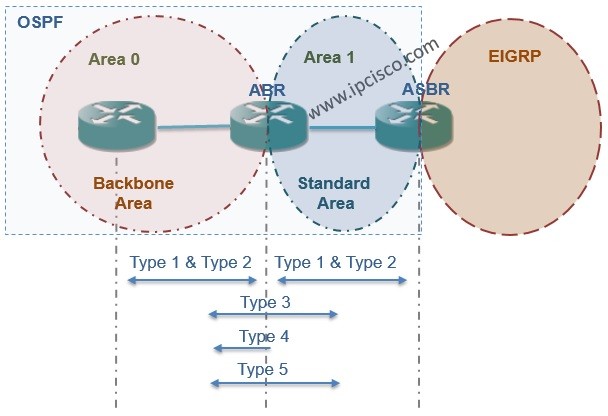
 OSPF Backbone Area and Standard Area with Accepted LSAs
Backbone Area is also a Normal Area but it is Area 0.
Normal Areas accept the
Summary LSAs from other Areas
(Type 3 and Type 4 LSAs). They accept also the
External LSAs (Type 5 LSAs). Type 1 and Type 2 LSA are already accepted inside area.
We talked about theorical too much. This post aims to show you the configuration of this areas and as you know, doing the configuration is the most effective way of learning network protocols.
Our topology will be like below fort he first example.
 OSPF Backbone Area, Standard Area and
Virtual-Link Example Topology
OSPF Backbone Area, Standard Area and
Virtual-Link Example Topology
As you can see, in this topology, there are
Backbone Area (Area 0) and
three standard (normal) areas (Area 1, Area 2, Area3).
Firstly let’s configure the IP Addresses on all routers:
Router1
Router1>enable
Router1# configure terminal
Router1(config)# interface GigabitEthernet0/0
Router1(config-if)# ip address 10.1.0.1 255.255.255.0
Router1(config-if)# no shutdown
Router1(config-if)# exit
Router1(config)# interface GigabitEthernet0/1
Router1(config-if)# ip address 10.2.0.1 255.255.255.0
Router1(config-if)# no shutdown
Router1(config-if)# end
Router1# copy running-config startup-config
Router2
Router2>enable
Router2# configure terminal
Router2(config)# interface GigabitEthernet0/0
Router2(config-if)# ip address 10.1.0.2 255.255.255.0
Router2(config-if)# no shutdown
Router2(config-if)# exit
Router2(config)# interface GigabitEthernet0/1
Router2(config-if)# ip address 10.3.0.1 255.255.255.0
Router2(config-if)# no shutdown
Router2(config-if)# end
Router2# copy running-config startup-config
Router3
Router3>enable
Router3# configure terminal
Router3(config)# interface GigabitEthernet0/0
Router3(config-if)# ip address 10.2.0.2 255.255.255.0
Router3(config-if)# no shutdown
Router3(config-if)# exit
Router3# copy running-config startup-config
Router4
Router4>enable
Router4# configure terminal
Router4(config)# interface GigabitEthernet0/0
Router4(config-if)# ip address 10.4.0.1 255.255.255.0
Router4(config-if)# no shutdown
Router4(config-if)# exit
Router4(config)# interface GigabitEthernet0/1
Router4(config-if)# ip address 10.3.0.2 255.255.255.0
Router4(config-if)# no shutdown
Router4(config-if)# end
Router4# copy running-config startup-config
Router5
Router5>enable
Router5# configure terminal
Router5(config)# interface GigabitEthernet0/0
Router5(config-if)# ip address 10.4.0.2 255.255.255.0
Router5(config-if)# no shutdown
Router5(config-if)# exit
Router5(config)# interface GigabitEthernet0/1
Router5(config-if)# ip address 10.5.0.1 255.255.255.0
Router5(config-if)# no shutdown
Router5(config-if)# end
Router5# copy running-config startup-config
Router6
Router6>enable
Router6# configure terminal
Router6(config)# interface GigabitEthernet0/1
Router6(config-if)# ip address 10.5.0.2 255.255.255.0
Router6(config-if)# no shutdown
Router6(config-if)# end
Router6# copy running-config startup-config
After this basic interface configurations, let’s configure the
OSPF on all routers. Here, OSPF process number will be 1 and the Routerx’s router ID will be x.x.x.x. Beside this, all the connected areas will be configured.
Router1
Router1>enable
Router1# configure terminal
Router1(config)# router ospf 1
Router1(config-router)# router-id 1.1.1.1
Router1(config-router)# network 10.1.0.0 0.0.0.255 area 0
Router1(config-router)# network 10.2.0.0 0.0.0.255 area 1
Router1(config-router)# end
Router1# copy running-config startup-config
Router2
Router2>enable
Router2# configure terminal
Router2(config)# router ospf 1
Router2(config-router)# router-id 2.2.2.2
Router2(config-router)# network 10.1.0.0 0.0.0.255 area 0
Router2(config-router)# network 10.3.0.0 0.0.0.255 area 2
Router2(config-router)# end
Router2# copy running-config startup-config
Router3
Router3>enable
Router3# configure terminal
Router3(config)# router ospf 1
Router3(config-router)# router-id 3.3.3.3
Router3(config-router)# network 10.2.0.0 0.0.0.255 area 1
Router3(config-router)# end
Router3# copy running-config startup-config
Router4
Router4>enable
Router4# configure terminal
Router4(config)# router ospf 1
Router4(config-router)# router-id 4.4.4.4
Router4(config-router)# network 10.3.0.0 0.0.0.255 area 2
Router4(config-router)# network 10.4.0.0 0.0.0.255 area 2
Router4(config-router)# end
Router4# copy running-config startup-config
Router5
Router5>enable
Router5# configure terminal
Router5(config)# router ospf 1
Router5(config-router)# router-id 5.5.5.5
Router5(config-router)# network 10.4.0.0 0.0.0.255 area 2
Router5(config-router)# network 10.5.0.0 0.0.0.255 area 3
Router5(config-router)# end
Router5# copy running-config startup-config
Router6
Router6>enable
Router6# configure terminal
Router6(config)# router ospf 1
Router6(config-router)# router-id 6.6.6.6
Router6(config-router)# network 10.5.0.0 0.0.0.255 area 3
Router6(config-router)# end
Router6# copy running-config startup-config
After doing this configuration we will see all the network on
Topology Table except
Area 3. Area 3 is not directly connected to the Backbone Area,Area 0. So in the routing table of the routers there will be no route to this Area 3.
[sc name=”ContentRMessage”]
Other OSPF Area Types on Packet Tracer Lessons
OSPF Area Types on Packet Tracer – Part 1 (Standard Area, Backbone Area, Virtual-Link)
OSPF Area Types on Packet Tracer – Part 2 (OSPF External Routes)
OSPF Area Types on Packet Tracer – Part 3 (Stub Area, Totally-Stub Area, NSSA, Totally NSSA)
You can check the other Packet Tracer Examples below:
Common Cisco Router Configuration Example on Packet Tracer
Router DHCP Configuration Example on Packet Tracer
VTP Configuration Example on Packet Tracer
VLAN Configuration Example on Packet Tracer
STP Configuration Example on Packet Tracer
BGP Configuration Example on Packet Tracer
Port Security Configuration Example on Packet Tracer
RIP Configuration Example on Packet Tracer
CDP Configuration Example on Packet Tracer
OSPF Area Types Example on Packet Tracer (Standard and Backbone Areas)
OSPF External Routes Example on Packet Tracer
OSPF Area Types Example on Packet Tracer (Stub, NSSA, Totally Stubby, Totally NSSA Areas)